The short version
- All the reports are under Reports in QuickBooks Online.
- Set the dates we give you: the cutover date for balances, and the start of your fiscal year to the cutover for detail.
- Run the Trial Balance once for each date: your last fiscal year end, each month-end since, and the cutover. Every one runs from the first day of its fiscal year. Joining at a year end, you only need that one.
- Leave Accounting method on Accrual.
- Export each one to Excel with the export button above the report.
- Upload the reports on your onboarding page, all to the QuickBooks exports line.
- Bring your customers, suppliers, and products and services over yourself, under Your lists.
The reports
Your cutover date is on your onboarding page. Use it wherever this table says cutover.
| Report | Dates to set | What it gives us |
|---|---|---|
| Account List | None | Your chart of accounts |
| Trial Balance | One for each date: your last fiscal year end, each month-end since, and the cutover. From: the first day of that date's fiscal year. To: the date | Every opening balance, and what each account did in each month so far this year |
| Open Invoices | To: the cutover date | What customers owed you at the cutover |
| Unpaid Bills | To: the cutover date | What you owed at the cutover |
| Transaction Detail by Account | Start of your fiscal year to the cutover | Every bank and card transaction, including cheques not yet cleared |
| General Ledger | Start of your fiscal year to the cutover | Everything posted this year, for your CPA at year end |
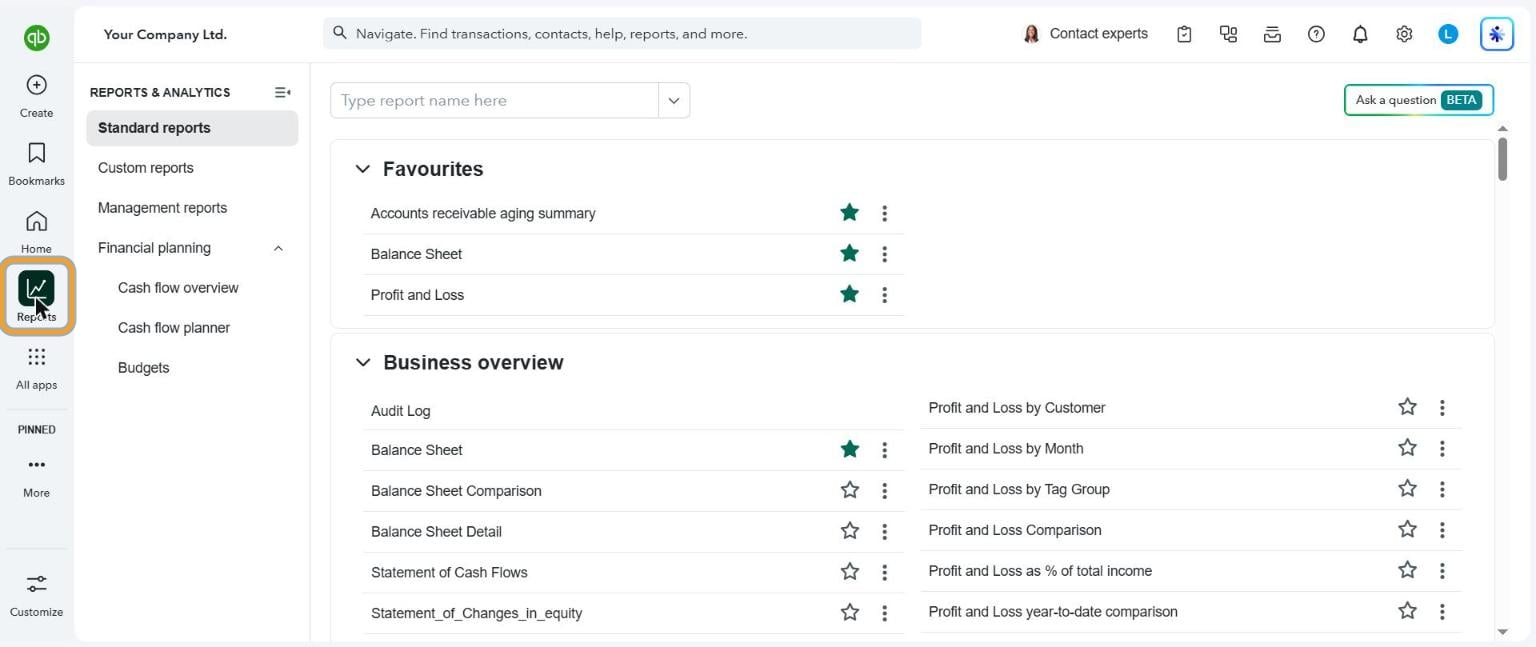
1. Open Reports
In the left menu, select Reports. Standard reports opens.
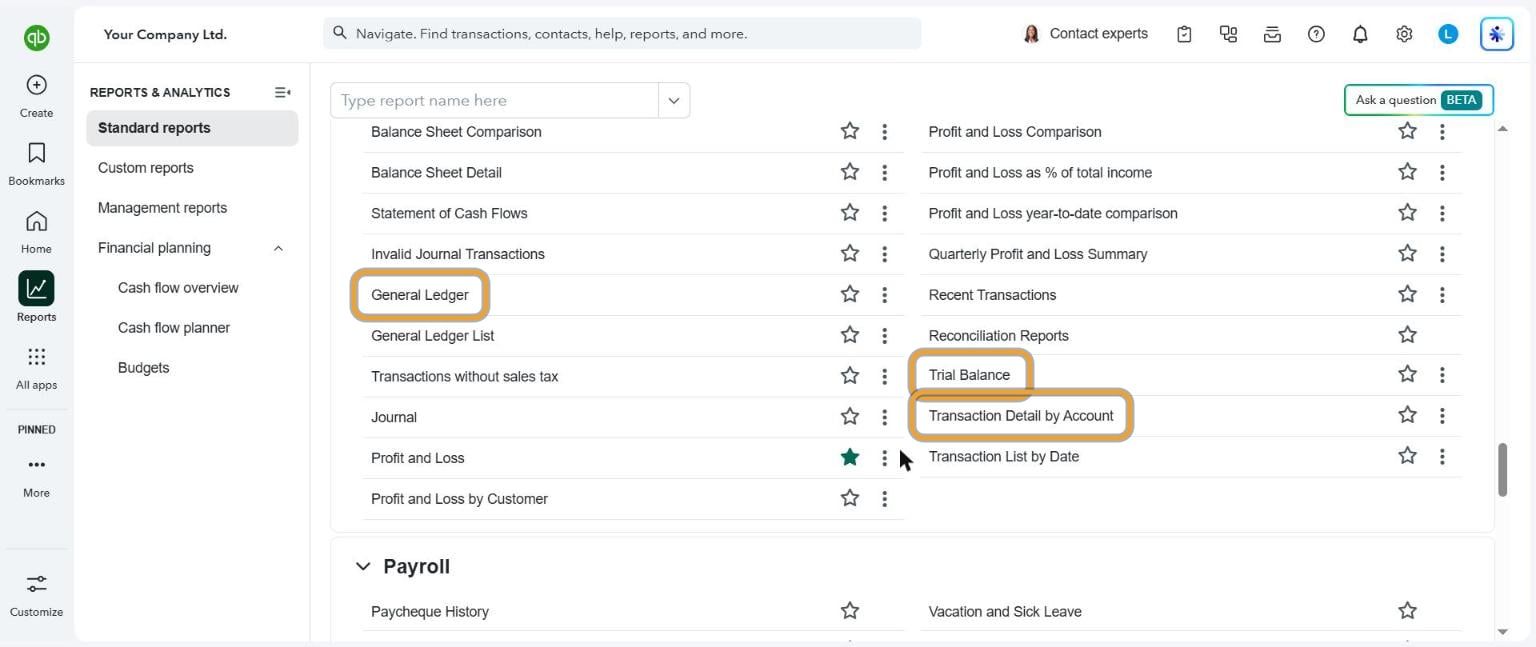
2. Find each report
Type the report's name in the search box at the top, or scroll the list. Trial Balance, General Ledger and Transaction Detail by Account are near the bottom, together.
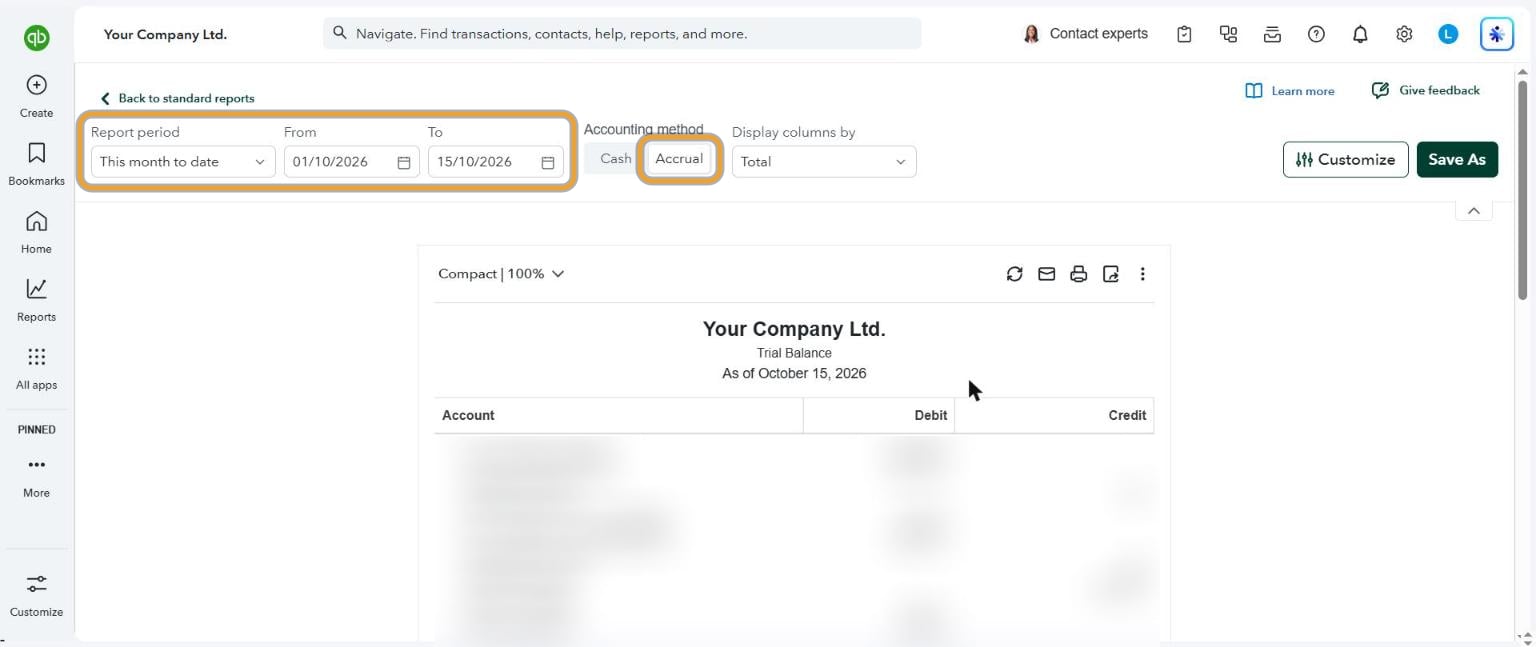
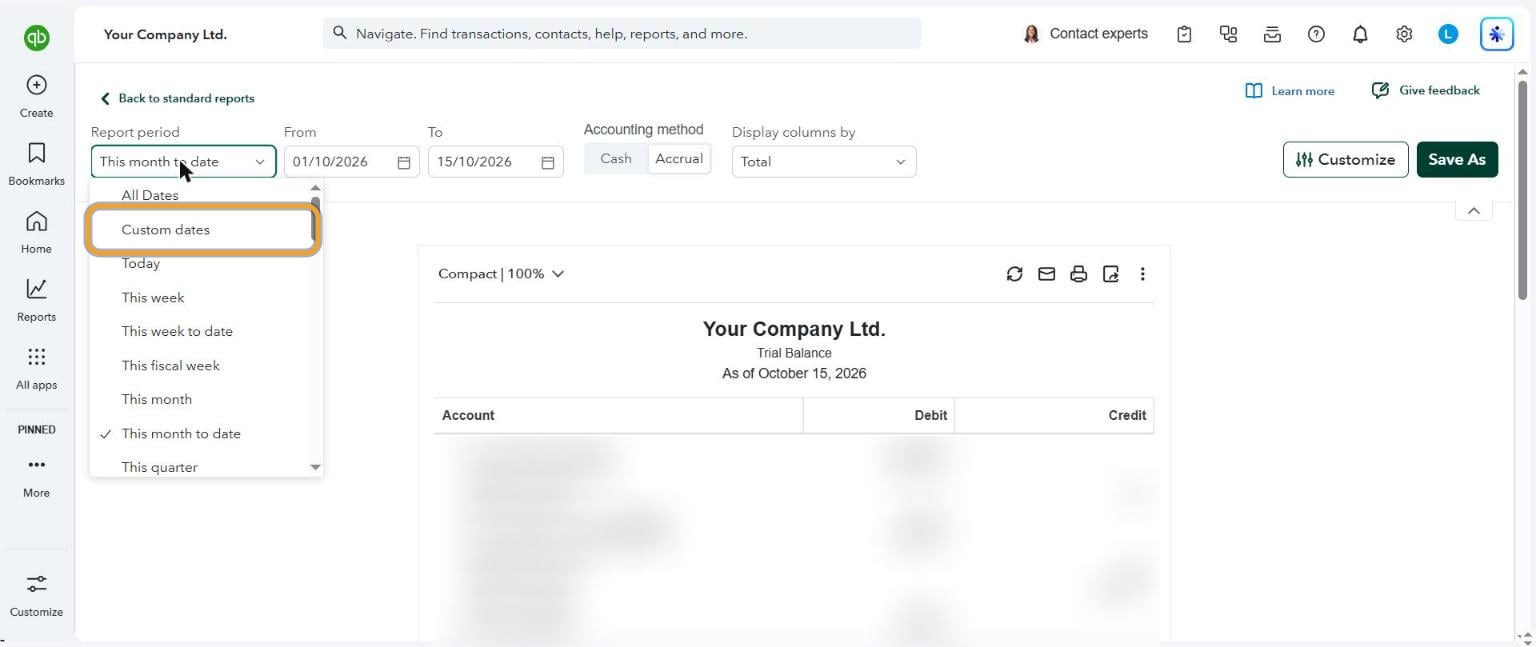
3. Set the dates and check Accrual
At the top of the report, set the dates from the table. For a single date, set To to the cutover date. Check Accounting method says Accrual. The report updates by itself.
The Trial Balance is different: run it once for each date we need, and start every one on the first day of its fiscal year. If your fiscal year starts on January 1 and your cutover is April 30, 2026, that's five: January 1 to December 31, 2025, then January 1, 2026 to January 31, to February 28, to March 31, and to April 30. If your cutover is the last day of your fiscal year, you only need that one.
Before you export them, compare two month-ends. An income account should be at least as big at each month-end as it was at the one before, because each report is the year to date. If it's smaller across the board, a report was run for the month alone: set From to the first day of the fiscal year and run it again.
4. Export to Excel
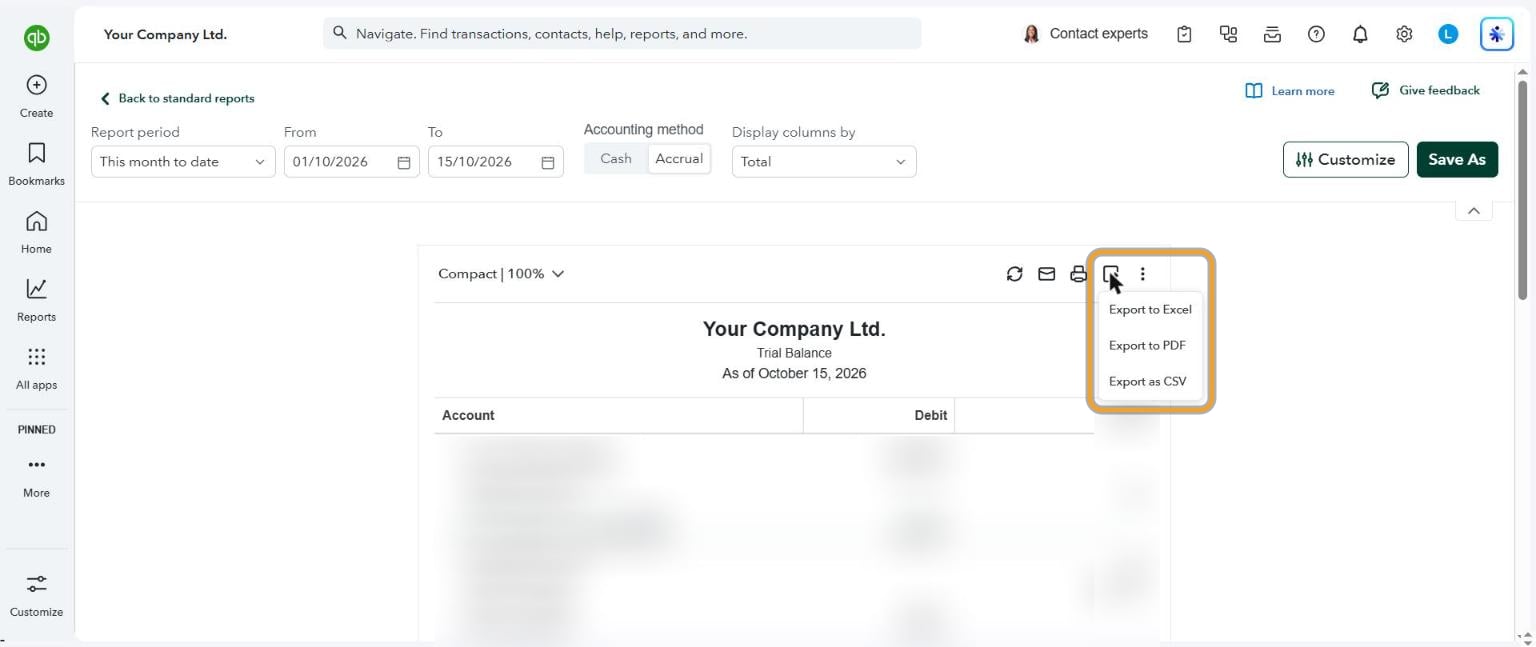
Select the export button above the report, then Export to Excel. The file downloads. Do the same for each report in the table, and for each date on the Trial Balance. Excel is best; CSV is fine if Excel isn't offered.
Transaction Detail by Account: one file for every account
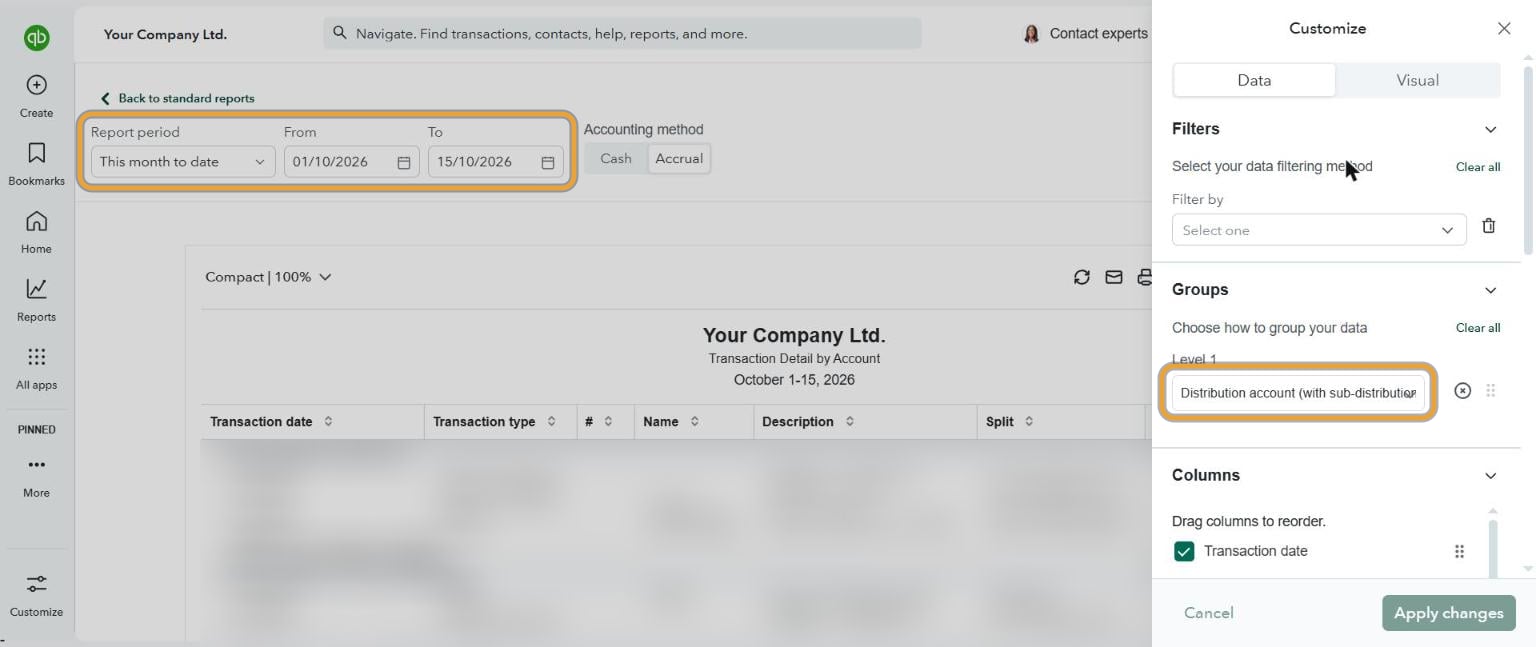
This report is grouped by account already, so one export covers every bank and credit card account. Set the dates from the start of your fiscal year to the cutover, leave the grouping as it is, and export.
Your customers, suppliers, and products and services
These three come over a different way: you bring each one over yourself, on your onboarding page under Your lists, and see every row before anything is added. Names, contact details, payment terms and prices come over. Nothing already there is overwritten, and no balances come over this way.
To get each one out of QuickBooks Online:
- Customers: Reports, then Customer Contact List (type it in the search box), then Export, Export to CSV.
- Suppliers: Reports, then Supplier Contact List, then Export, Export to CSV.
- Products and services: in the new layout, All apps, Sales & Get Paid, Products & services; in the old one, the gear icon, Lists, Products and Services. Select the export button above the list. If there isn't one, select More, Run report, then Export.
Then, on your onboarding page under Your lists, choose Bring it over beside each list. Choose QuickBooks Online as where the list is now, then the file. Check what each column holds, check the rows, and choose Bring it over. If a list has nothing in it, say no suppliers, choose Nothing to bring instead.
Bank details never come over. If an export has columns for bank account numbers, they're left out of the import and out of the copy we keep.
5. Upload the reports
On your onboarding page, upload every report to the QuickBooks exports line, including every Trial Balance. You can upload several at once, and we tell the Trial Balances apart by the date each one says it is for. That's it: we check them against your statements before anything is brought in.
If a report isn't there
QuickBooks Online EasyStart doesn't include every report. If you can't find Unpaid Bills or Transaction Detail by Account, export the General Ledger for the same dates and tell us on your onboarding page. We'll work from that.
Common questions
Do I need to cancel QuickBooks?
Not yet. Keep it until your first year end with us is done. Your CPA may need to look something up.
Can I export everything at once?
QuickBooks has an Export data option under Settings that zips many reports together, but it leaves out the chart of accounts and doesn't let you set each report's dates. The reports one by one are more reliable.
What if I use QuickBooks Desktop, Xero, Wave or Sage 50?
Each has its own guide, listed with this one on our free guides page. If yours isn't there, tell us on your onboarding page and we'll send you the steps.