The short version
- You authorize us in your CRA business account: Profile, then Authorized representatives, then Add.
- You enter our representative identifier (RepID). We send it to you with your onboarding requests.
- Choose Level 2 (view and update) for your GST/HST (RT) and payroll (RP) accounts, or for your whole business number.
- Online authorizations usually take effect right away. Tell us on your onboarding page when it's done.
- You can remove the authorization at any time from the same page.
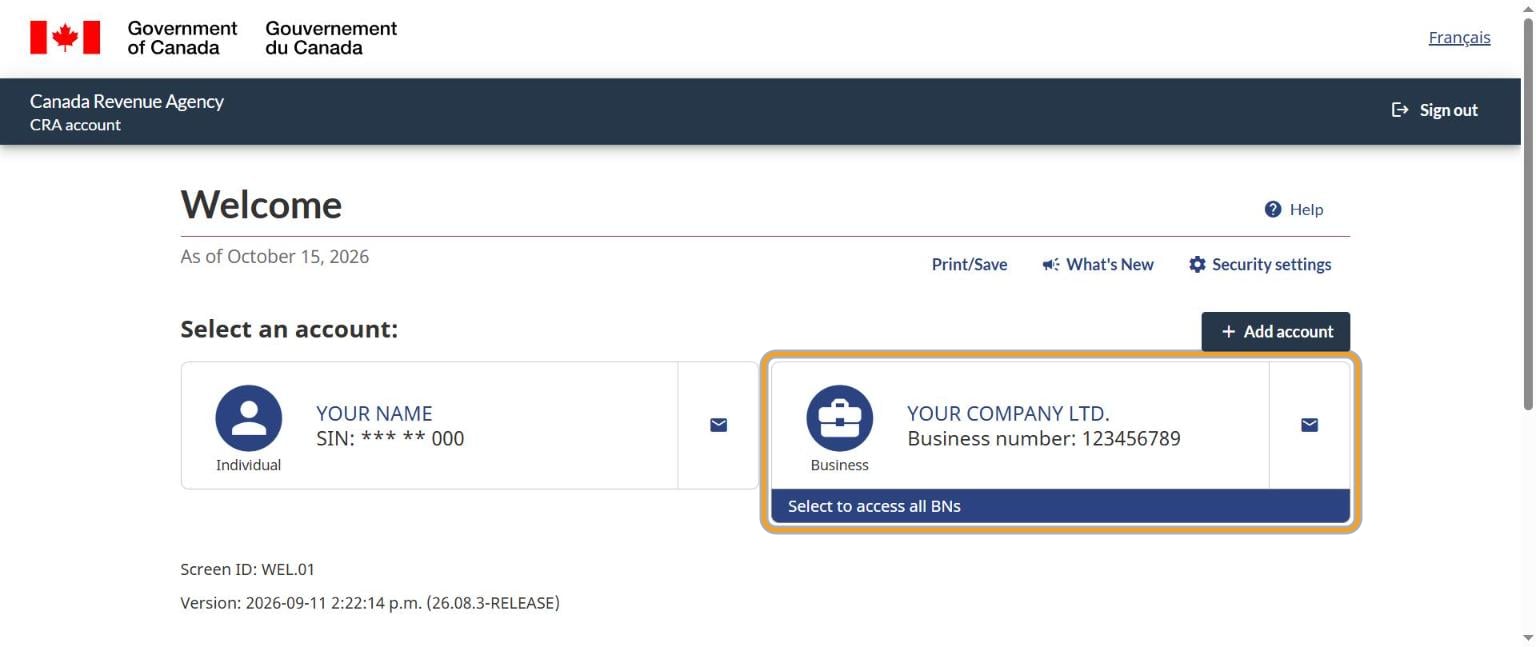
1. Sign in and open your business account
Sign in to your CRA account. On the Welcome page, select your business.
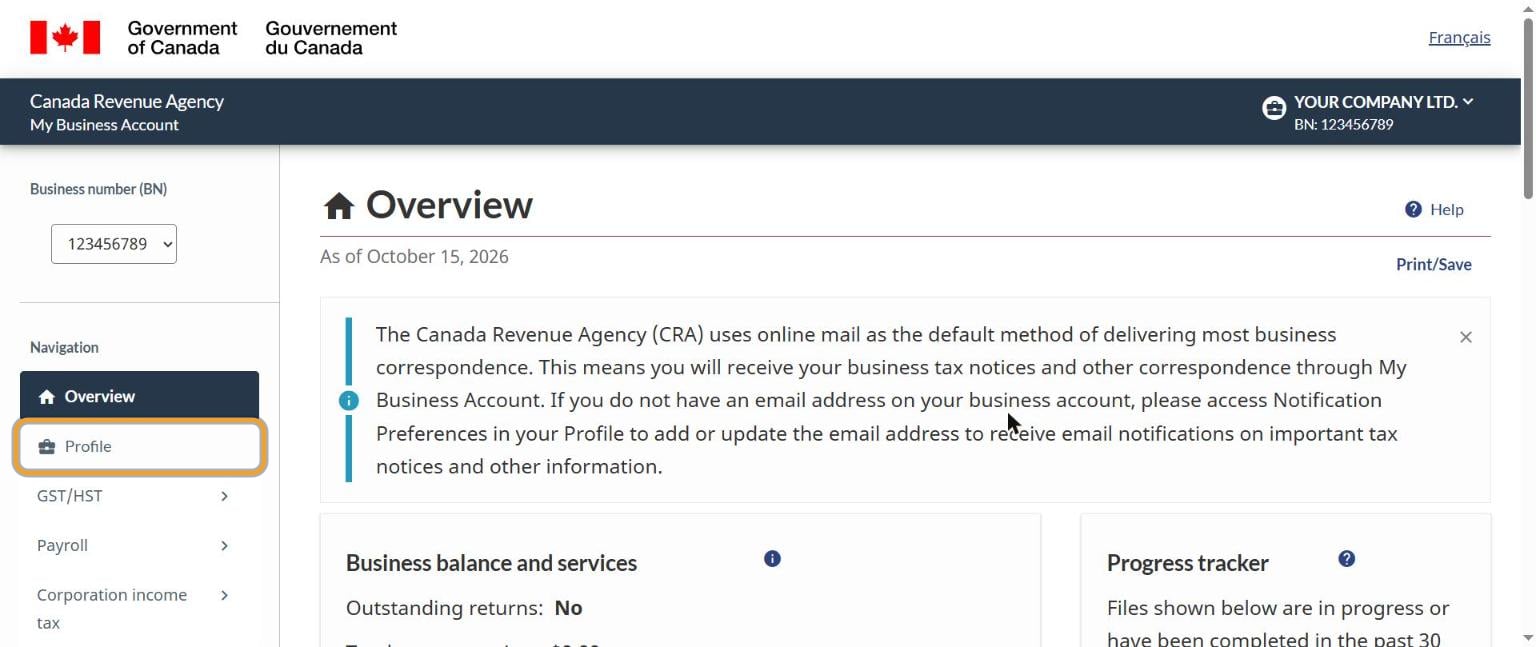
2. Go to Profile
In the menu on the left, select Profile.
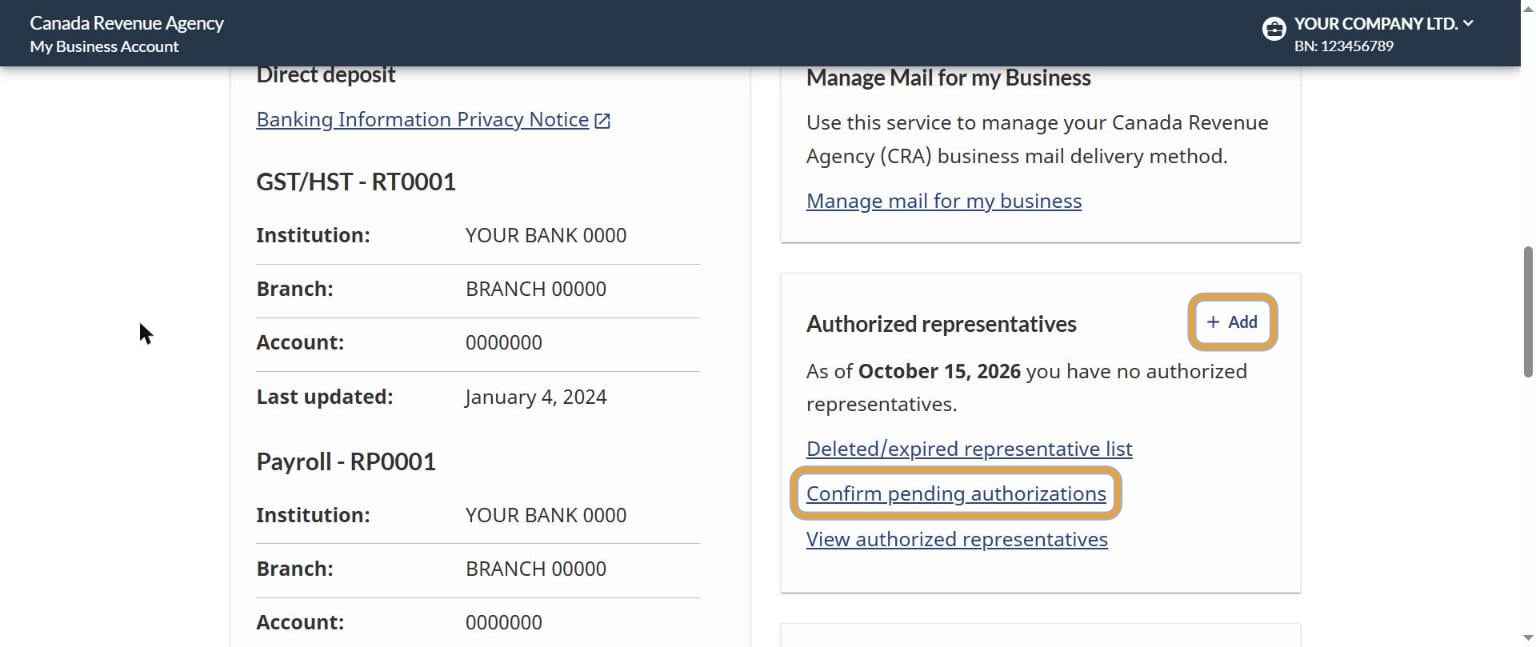
3. Add a representative
Scroll down to the Authorized representatives box and select Add. (If we've sent you a request instead, select Confirm pending authorizations. See the last section.)
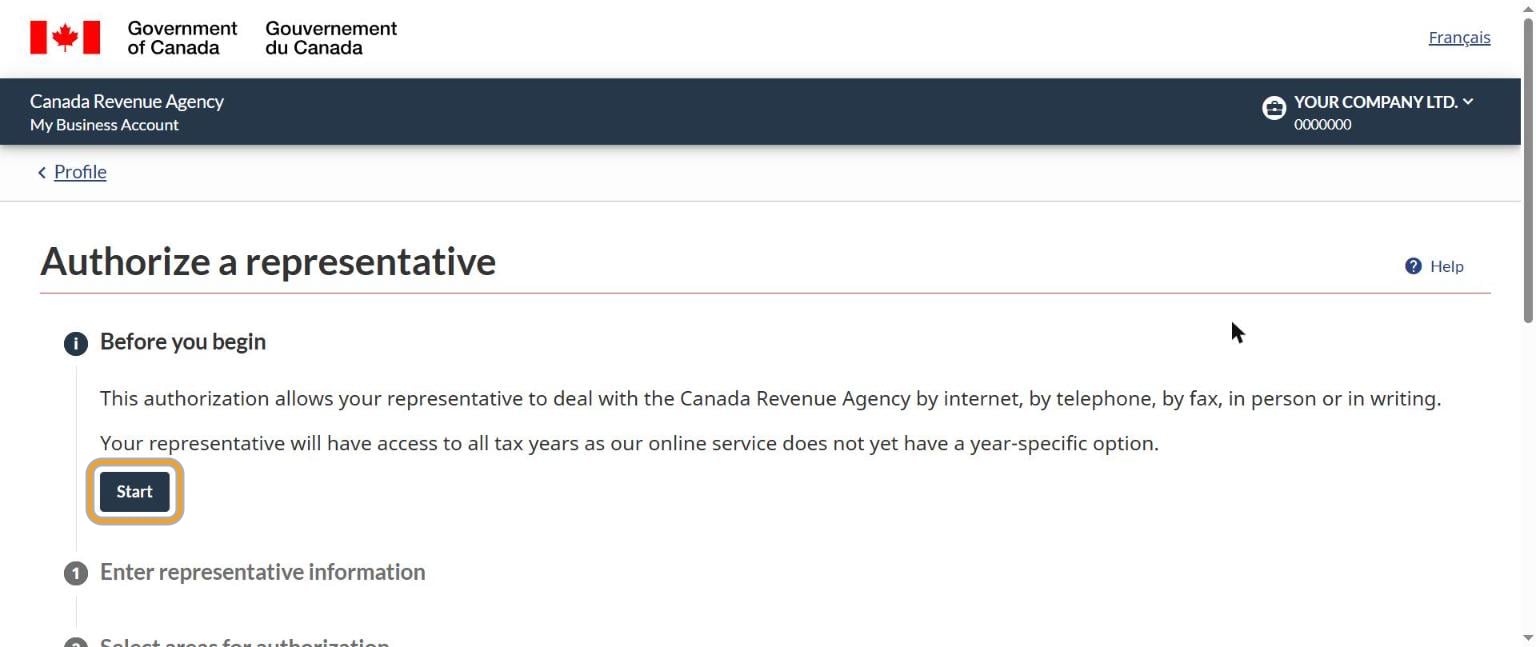
4. Read the note and select Start
The first screen explains that your representative can deal with the CRA online, by phone, by fax, in person or in writing, for all tax years. Select Start.
5. Enter our RepID and search
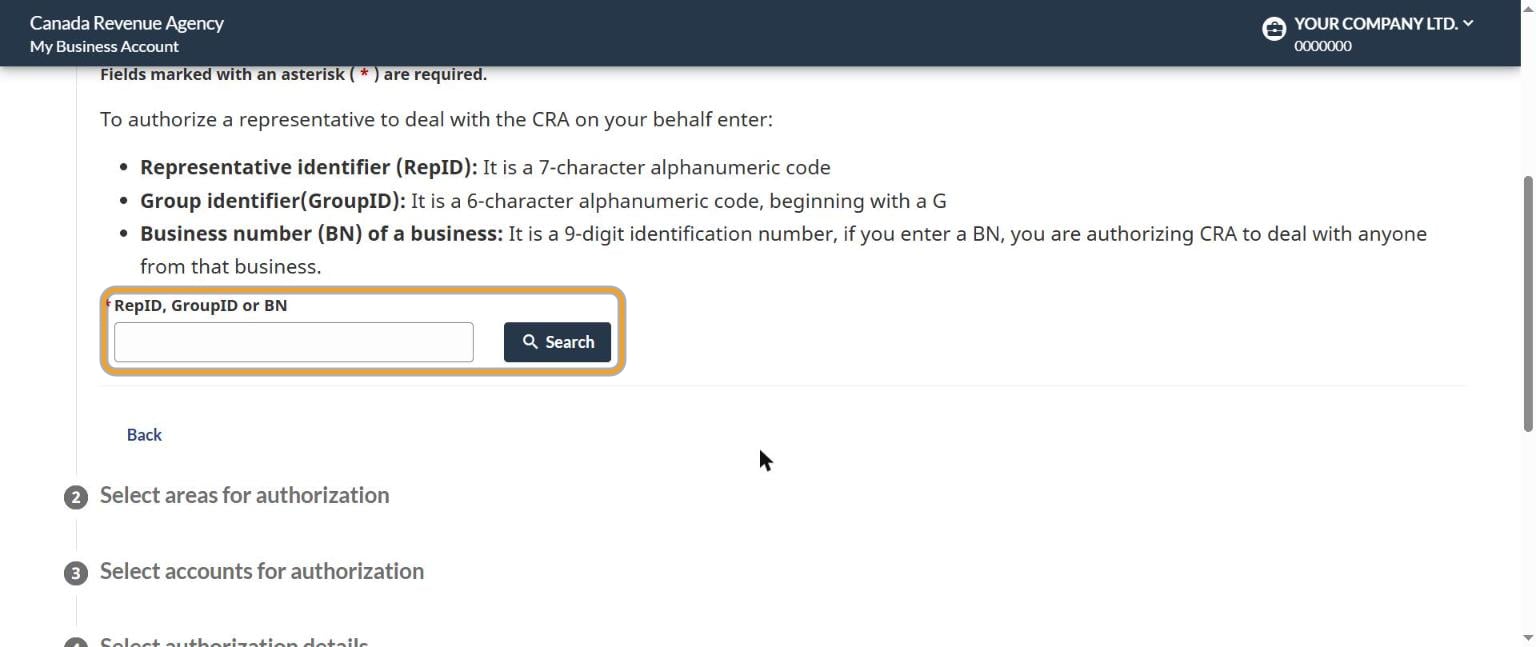
In the box labelled RepID, GroupID or BN, enter the RepID we gave you, then select Search. Check the name that comes up is the one we told you, then continue.
6. Choose what we can see and do
The next screens ask four things. Here's what to choose:
- Select areas for authorization: your business accounts.
- Select accounts for authorization: your GST/HST (RT) and payroll (RP) accounts, or the entire business number.
- Select authorization details: Level 2, view and update information. Leave the expiry date blank unless you want it to end on a set date.
- Review and confirm, then submit.
| Level | What it allows | For us |
|---|---|---|
| Level 1 | View information only | Not enough to file returns |
| Level 2 | View and update information | What we need |
| Level 3 | Delegated authority: view and update, and authorize other representatives | Not needed |
7. Tell us it's done
On your onboarding page, mark the CRA request as done. We check that the access works and let you know.
If we sent you a request instead
Sometimes we start the request from our side, in the CRA's Represent a Client service. Then you only confirm it: in your business account, go to Profile, and in Authorized representatives select Confirm pending authorizations. Select our name, check the details and confirm. The CRA may ask you to confirm within 10 business days, so do it when you see our note.
No online account?
Form AUT-01, Authorize a Representative for Offline Access, gives access by phone, mail, fax and in person only. It doesn't give online access, so we can't file through it. If you don't have a CRA business account, we'll help you set one up instead. Form RC59, which older guides mention, has been replaced.
Common questions
Can Tallyforth see my personal tax information?
No. This authorizes us on your business number only. Your individual CRA account isn't included.
How do I remove the authorization later?
In your business account, go to Profile, then View authorized representatives, and remove us. It ends right away. You can also send Form AUT-01X.
Does Tallyforth file my corporate tax return?
No. We prepare your year-end for your CPA, and your CPA prepares and files your corporate tax return. They get their own authorization from you.